martes, 29 de octubre de 2019

makebeliefscomix tutorial


Hi, in my previous post I shared with you a lesson plan in which students use Makebeliefscomix. If you don`t know how to use it you can find a tutorial here:


Make Beliefs Comix is an in-browser comic creator that allows you to illustrate such things as
instructions or conflicting ideas; really, your imagination is the limit. It doesn’t require any downloading
or installing which makes it easy to use anywhere, and you don't even have to log in!


1. To get started, go to Make Beliefs Comix.

2. If you would like to view a demo, click the bird-man to the left of the sample comic.


3. Otherwise, click “Enter Here!” under the sample comic. 


4. Add a name for your comic and your own name at the top of the empty white boxes. Page 2 of 9 
5. Scroll down and use the red diamond to look at the range of characters. Click on your choice. When
you click on your choice, it will appear in the side box. Use the red arrows to choose the pose you
want, then click on your character in the center of this box. 


6. Now your character appears in the first white box. In the bottom right, you'll click on the white pile
of objects and move back to the red arrows until you see a prop you like in the selection
window . Click on that object, and it will appear in the panel we are working on. Click on the
prop that appears in the panel and drag to move it to where you want it. You can do this again if
you want to have multiple copies of the prop.


7. Now click on the rain in the bottom right (#1). This will show you the backgrounds you can choose
from. Click the red arrows (#2) to find the background you want to use. Click on it (#3). 


8. Now click on the second panel and follow steps 4 through 7 to create the second scene in your
comic. You can add your character with a different pose or expression and add a different prop.

9.Click back to the first panel and then click "panel prompts" . Click on the red arrows under to find the
"type your own" option, and then click on that box. It will appear at the top of your first panel.
Click on it and then type in a caption, something short that explains the scene


10.Now use what you've learned so far to complete the third panel. Choose your character, add a
background, add props, and add panel prompts.


11.Let's go back and change the character so we can try a few things we didn't do. Click on the
"delete" button on the far left, then click on your character. You must click delete first each time
because the cursor defaults to moving items rather than deleting them.


12.Now you can add a different character in their place. First click on the panel you're putting the
character into, then use the slider to find your new character and use the red arrows to choose their
expression. Then click them into the scene. Changing the character works well if you need an
expression your character doesn't have, because each character only has four expressions.


13.If props and characters are stacked awkwardly, you can organize by bringing something to the front.
Click on the "Bring to Front" icon on the far left and then click on the object that you want to be in the
front.


14.You can also make an object fit better in the scene by using the "Flip" button. Below, we made the
ice cream cone fit more naturally by clicking "Flip" and then clicking the ice cream cone. Once you are
satisfied with the direction, click the "Move" button on the side to stop flipping things.


15.To change the size of an object or person, click on the panel you want to work in, then add the
object if you haven't already. Next, click the "scale" button on the left, click the object you want to
resize, and use the slider that appears to change the size. Here, we added a fairy and shrank it down.


16.To add speech bubbles or thought bubbles, click on the "talk balloons" or "thought balloons" at the
bottom and then use the red arrows to choose a size and direction of speech. Once you click on the
blank bubble in the selection window, it will appear in your selected panel. Click on it to add text and
then grab the edge of it to move it around. With the largest bubble, you can hit enter at the beginning
of your text in order to move your text lower and put the upper edge of the bubble out of sight. This is
useful if you don't quite fill the bubble because it defaults to more text at the top than the bottom. 


17.Now admire your completed comic! 


Let's save your comic. Go to the top left corner of the yellow box and click "Print/Email.” . On this
screen, you can click "save image to disk" which is useful if you are at home, or you can fill in your
email address twice under number 3 in order to email yourself a copy (great if you want to use it
somewhere other than the computer that you're currently using).


Some people´s opinion on the webpage:


"I just want to thank you for making this available. It has been great for my students with disabilities who have difficulty expressing themselves! Some of my students have never written a story before and they are ‘discouraged learners’. This format gives them a real boost and empowers them to create something. It yields a satisfying outcome that they can feel good about. It is great to see their eyes light up as they engage. I like to encourage them to see it as an exercise in sequencing events. Because you offer a nice selection of characters and different positions, they can create a simple story that shows beginning, middle, and end. I have been teaching some of them to type and they can put their skills to use."

KARIN DRAPER, MIDDLE SCHOOL OCCUPATIONAL THERAPIST


– Common Sense Media (March 2016): “Make Beliefs Comix can help kids build creative and narrative comic strips. They choose characters, objects, background colors, and other elements; the main site design is a little simplistic, but the well-explained tool is so user-friendly that even art-averse kids can use it to practice storytelling, writing, and imagination skills. Make Beliefs Comix provides a number of other valuable resources for parents and kids that stress having a positive attitude. Activities encourage kids to respect others and be confident. The Printables section features several thought-provoking exercises that can help kids identify feelings and make good decisions. Other writing activities encourage them to appreciate the world around them and learn from mistakes; site content also can introduce kids to subjects like 9/11's effect and women's rights. The comic characters are diverse, featuring people of color, animals, and a kid in a wheelchair ... Make Beliefs Comix brings something else to the table: a valuable focus on positivity, awareness, and self-acceptance.”

– Good Housekeeping (February 2009): "MAKE A FUNNY PAGE. Created by children's book author Bill Zimmerman, colorful MakeBeliefsComix.com lets kids (ages 4 and up) design comic strips using pre-drawn characters. Kids fill in text bubbles, then print or e-mail the cartoons for friends for free."

– TESOL Essential Teacher Magazine (June 2008): "Imagine a computer lab full of adult ESOL students where not a word is heard, where every head is bent in concentration, where smiles erupt spontaneously, and where fingers are clicking away on the keyboards. This is precisely what occurs when my students work with journalist and author Bill Zimmerman's web site, MakeBeliefsComix.com.

martes, 22 de octubre de 2019

web 2.0 lesson plan

Hi again ! In this post I will be showing you a lesson plan in which I included the use of an amazing webpage to create comics : makebeliefscomix

If you don`t know how to use Makebeliefscomix you can find a tutorial here:
Hope you enjoy it ! :D

Level: intermediate
Age: 13/14 year-old studets
timetable: 2 hours per week 

Warmer: ( 10-minute activity )
The teacher is going to divide the class into different groups. Each group will get different pictures
related to what humans do with our planet. In groups they will have to divide those pictures into the
ones that are contaminating our planet and the ones that are saving our planet. Once they have
categorized the pictures, they will have to come up with epigraphs for each of them explaining how
they contribute to damaging or saving our planet. 
Once each of the groups have finished, we are going to share the results trying to find similarities and
differences. 


Some of the pictures students will get are: 


Web: ( 40-minute activity)

Students will be asked to watch the following video: 


After doing some comprehension activities related to the video, the teacher will ask the students who
their superhero is and she will ask them to invent an “environmental superhero” and create a short
comic showing an environmental problem ( trash in the river, pollution, deforestation,etc.)  and a way
in which this superhero can help change this situation ( recycle, use less plastic, plant, etc). To do
this comic, students are going to learn how to use makebeliefscomix, a great webpage they can use
to create their comic. 
Before jumping into the activity, the teacher is going to ask the students to watch a tutorial on how to
use the webpage. Then, she is going to show them the final product of a comic the teacher had created
and with all that support, students are going to do their own comic.
 
What's next: (10-minute activity)


Students will act out their comics in front of the rest of their classmates. Finally, we are going to vote for the
best superhero !


Frameworks that support the use of MakeBeliefsComix:


Bloom´s Digital Taxonomy


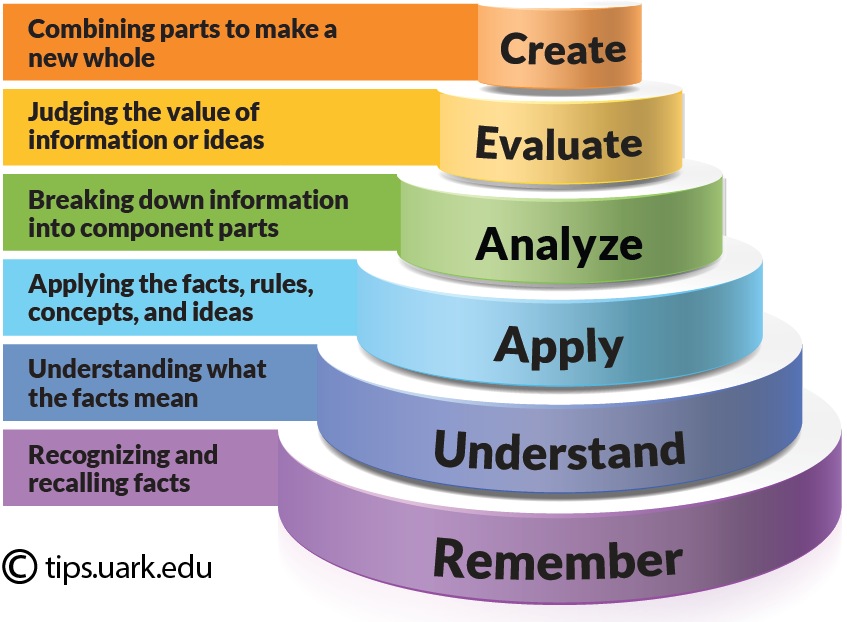
The main focus of the Bloom´s Digital Taxonomy (2008) is on how different tools can act as vehicles for transforming students thinkig at different levels in a digital environment. This theoretical framework helps teachers plan their lessons going gradually from one level to another one. In this  particular case, students are working at the highest level of the Bloom's digital Taxonomy : “creating”. Creating is the final level of the Bloom´s Digital Taxonomy and it is concerned with taking various elements and creating a new, coherent product. In this particular activity, students have to take into account all the information they had learned about pollution and possible ways of solving it and transform that information into a comic in which there is a superhero that helps the world.


Resultado de imagen para blooms taxonomy


TIC TAC TEP. 


TIC is an umbrella term that makes reference to the technology that facilitates acquisition, transmission and interchanging processes. It is an integration of the technology and information in education. It does not exclusively belong to the educational field. It is now very well known that the mere use of technology without any meaningful reason into the classroom is not enough to ensure learning.This is why the term TAC appeared. This term makes reference to the use of TECs as a formative tool that has a pedagogical background that supports its use within every teacher´s plan.
Last but not least, nowadays a new term has been proposed ( TEP ) to emphasise this new technologydemocracy in which people can interact and collaborate as creators of new content that is generated by a virtual community.
In this case, students are working at a TAC level. In this activity, learners are actual creators of new material in which they took information from a video that was uploaded in another webpage and now they are transforming it into a comic. Students are using technology with a clear pedagogical purpose which is to summarize the most important information they took from the video and use it to do a new activity. However, the webpage only allows students to print or save the comic in their computers. It doesn´t give students the option of sharing it with a virtual community.

Resultado de imagen para tic tac tep


SAMR MODEL 


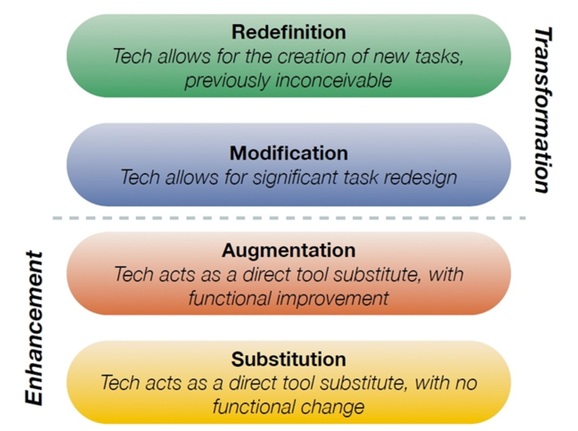
According to the SAMR model by Ruben Puentedura, The integration of technology into the
classroom can be seen as a ladder, in which the first two steps technology can be seen as a mere
enhancement of the activities and the last two steps transform those activities. The first step is
substitution, the second one augmentation, the third one modification and the last one redefinition.
This activity is a clear example of how technology is integrated at an augmentation level. Students could have created the comic without the use of technology but it would have taken much more time and students wouldn't have been able to add all the effects that this tool allows them to add.


Resultado de imagen para samr model


References:

Puentedura, R. (2006). Transformation, Technology, and Education. Retrieved in October 2019 from
http://www.hippasus.com/rrpweblog/archives/2014/06/29/LearningTechnologySAMRMdel.pdf.

Sneed, O. (2016). Integrating Technology with Bloom's Taxonomy. Retrieved in October 2019, from https://teachonline.asu.edu/2016/05/integrating-technology-blooms-taxonomy/.

TIC, TAC, TEP. Tecnologías para aprender y para toda la vida. (2016, January 7). Retrieved from nclusioncalidadeducativa.wordpress.com/2016/01/07/tic-tac-tep-tecnologias-para-aprender-y-para-la-vida/.

(n.d.). Retrieved from https://www.youtube.com/watch?v=HoNQfUWWRMk.

(n.d.). Retrieved from https://www.youtube.com/watch?v=bn8R_XqjjI0.

Create Comics Online: Comix Maker: Comic Strips: Comic Generator. (n.d.). Retrieved from https://www.makebeliefscomix.com/.

martes, 8 de octubre de 2019

tutorials

In the previous post, I have included the use of technology to a common lesson plan. The use of each tool has been supported by different theoretical frameworks. Here, I am including a tutorial on how to use those tools. I would suggest having a look at my previous post before reading the tutorial.
Hope you like it ! :)

Fakebook

Fakebook allows teachers and students to create imaginary online profile pages for studying purposes.You can click on this link to navigate the webpage. Use “Fakebook” to chart the plot of a book, the development of a character, a series of historical events, the debates and relationships between people, and so on!  The possibilities are practically endless and what the students use them for is completely based on your own personal rubric for the assignment. 


If you want to get started with fakebook you can follow these steps:
  • Enter the name of your character. Fakebook will automatically find a profile picture, but you can upload one yourself too. 
  • Add some profile information (e.g. birthday, hometown, relationship status, hobbies…). 
  • Add some “Friends”. You can add as many as you wish. 
  • Add your first “wall post”. Add YouTube videos to posts by providing the URL. Click “Share” when you’re done.
  • Add a comment to your post from another character. Use “likes this.” And “dislikes this.” If you want a thumbs up / down symbol to appear
  • Proceed to add posts, comments and friends as you wish. Posts can be edited, moved (drag and drop with your mouse) and deleted.
  • The menu at the top right of the screen provides other features:
Save: Save your work for later viewing or editing. You will get a unique URL for your Fakebook! Search: Search the Fakebook archive for creations by other people.
Browse: Take a look at some of the most recent creations.
Print: Print off a paper version of your Fakebook.
Embed: Get the code for your Fakebook so you can embed it into your own blog, website or wiki. Download: Get a HTML version of your Fakebook.
Premium login: Login to Classtools premium (removes adverts, develop your own personal “favourites” area).


Powtoon


If you want to get started with powtoon you can follow these steps:
  • Log in using the provided email and create a studio presentation.
  • Watch the tutorial that you can find when you open Powtoon for the first time. 
  • To start creating a presentation or a video, you first need to select a template:


  • Once you are creating your video you can insert images: Select image icon on the right to insert an image, either from your computer or you can search for images:


  • How much time are those images, videos or text you added going to last?:Check the bottom time indicator (slide bar). Did you want it to appear from 5 seconds into animation and leave at 11 seconds? If not move the sliders edges and change the time the image will appear on the screen. The PowToon Timeline is used to add animation timing to objects in your presentation. 

Some options you may also find in the bar tool

1. Playhead: The playhead indicates at what second you are currently in your slide. You can slide the playhead throughout the timeline to preview the animation for each slide. 
2. Total Slide Time: Each slide by default is assigned 10 seconds. This can be decreased or increased to up to 20 seconds maximum.
 3. Object Duration Bar: Each object has a animation timing duration bar. To access this bar select the object on the stage and adjust the timing as desired. 
4. Object Thumbnails: All objects in the slide will appear below the timeline. Click on an object to adjust the effect and duration of the object. 
5. Object Effects (Animation): Objects can be set to Enter or Exit the stage using a variety of options including fades, directionality and even a hand function (where a human hand slides the object onto the presentation). Each object can be animated using these effects. Note: You can also Flip an object’s orientation from this area. 
6. Playback Controls: Help you preview your presentation animation as you go. Note: there are four 7. playback options - from left to right - (a) play all slides from start, (b) play current slide from start, (c) play from playhead then continue, and (d) play current slide.


  • Background: Change in slides: Select a background and it will remain for the whole scene. If you want to change your background colour later, you will need to create a new slide/scene and select a new colour or image background for that slide. 
  • Transparency: Some backgrounds will treat the white in images as transparent. So be aware of this feature. 
  • Own background: You can upload your own background image too.
  • Saving: Press the disc to save onto your account (it doesn’t save onto your PC). Save as you go. 

Some people´s opinion about powtoon:


Randy Y. says "Overall, I am satisfied with this tool. It has some minor issues, but none of those issues are deal breakers for me."
Benefits: Easy to Start: It only takes me ~20 min to gain basic proficiency and ~60 min to gain advanced proficiency.
Time-Saving Templates: It has several templates ready to be used, which saves time.
Beautiful built-in assets: Animated avatars, objects, short videos, graphics, audios, etc. Basically anything you could possibly want in a multimedia product--PowToon has it already built-in.
Ease of Future Maintenance/Update: The way Powtoon's interface is designed allows for ease of future edits. You can easily swap in/out vectors/audio/texts if your video ever needs an update in the future.
Disadvantages: Minor Glitch: Sometimes, objects (vectors, geometric shapes) would move to the wrong place by mouse drags. This is more of a minor nuisance than a real problem.
Lack of Audio Editing Feature: It has very little audio-editing capability. Because it has a built-in voice-over recording feature, this feature would be more useful if audio editing ability can be available.


Patti S. says "I am an instructional designer/developer and I use PowToon as part of eLearning courses and to communicate changes to end users. The premade templates make PowToon really easy to use. I find a look I like then modify with my content. Each template has its own music but I may upload my own music and upload images to personalize the video even more. If I have a question, I can chat directly with the support team (and I have had lots of questions). I had some trouble understanding the timing of objects when I first started. (Hint: where the thumbnail displays on the time line has Nothing to do with the exit time) and was frustrated by the lack of technical information about how the product works. This is because they depend on their support team to help users. Generally this is good but I would like to see Some documentation, even if it were just voiceovers on a PowToon to explain something. I found using a PowToon to communicate a recent system change to end users resulted in about a 70% view rate instead of a close to 10% read rate for just an email for a previous communication. I host the video on our SharePoint site and provide a link so it's easy to track the views."


Jefry N. says "From my experience with the program I can say that I have not had greater difficulties than to find myself a little disoriented at first, but thanks to its easy use and interactivity, I can learn at once and I can create my video. I would say that I would have difficulty uploading or sharing the video, because there are not enough options or the ones I want are blocked and I must pay. It would be good if the tool would allow you to share those videos over Whatsapp for free."


References:

Powtoon Instruction . (n.d.). Retrieved from http://year-7 ict.weebly.com/uploads/5/7/9/2/57924813/powtoon_instructions.pdf.


Fakebook Helpsheet. (n.d.). Retrieved from http://www.classtools.net/main_area/fakebook/helpsheet.pdf.

Powtoon. (n.d.). Retrieved from https://www.capterra.es/software/140321/powtoon.

lunes, 7 de octubre de 2019

Using Technology in the Classroom

The following post is about a lesson plan that has been enhanced by the use of technology. Each choice has been supported with theory from different theoretical frameworks. Hope you enjoy it!


Level: intermediate students
Form: 2nd form at secondary school
1-hour lesson
grammar focus: simple future.
Vocabulary focus: Vocabulary related to festivals.

Festivals Around the World


Activation 10’


The T will divide the class into groups of 4. She will give each of the groups a different picture about a
very well known festival that is celebrated around the world. Students will have to write a short description of it using FAKEBOOK (a webpage students have been using since the beginning of the year to post interesting things and make comments on their classmates´ ideas.) Once they have all posted, students are going to look at their classmates´ contributions and they are going to make a comment saying what festival they think it is and why and if they think they could have included any other important information about it ( like any specific acitivity they do or the country where it is celebrated, etc.)


THE USE OF FAKEBOOK: 


To justify the use of technology in this activity, I will resort to the following theoretical frameworks:
  • The main focus of the Bloom´s Digital Taxonomy (2008) is on how different tools can act as vehicles for transforming students thinkig at different levels in a digital environment. This theoretical framework helps teachers plan their lessons going gradually from one level to another one. In this particular case, through the use of fakebook the teacher is making students use higher order thinking skills that are "analyse" and "create".  Analysing is a level in which students learn to process data, dividing it into parts and determining the relationships between these parts and the overal purpose of the project. Creating is the final level of the Bloom´s Digital Taxonomy and it is concerned with taking various elements and creating a new, coherent product. In this activity students have to use their prior knowledge on any of the festivals presented in order to analyse them (by thinking about the most important information they know about it) to write a short description that will help their classmates guess the festival.
  • According to the SAMR model by Ruben Puentedura, The integration of technology into the classroom can be seen as a ladder, in which the first two steps technology can be seen as a mere enhancement of the activities and the last two steps transform those activities. The first step is is substitution, the second one augmentation, the third one modification and the last one redefinition. This activity is a clear example of how technology is integrated at a modification level. Students could definitely write that short description without the use of technology but what they cannot do without technology is commenting and having access to all of their classmates´contributions at the same time. So, we can say that this activity would not be conceivable without technology.

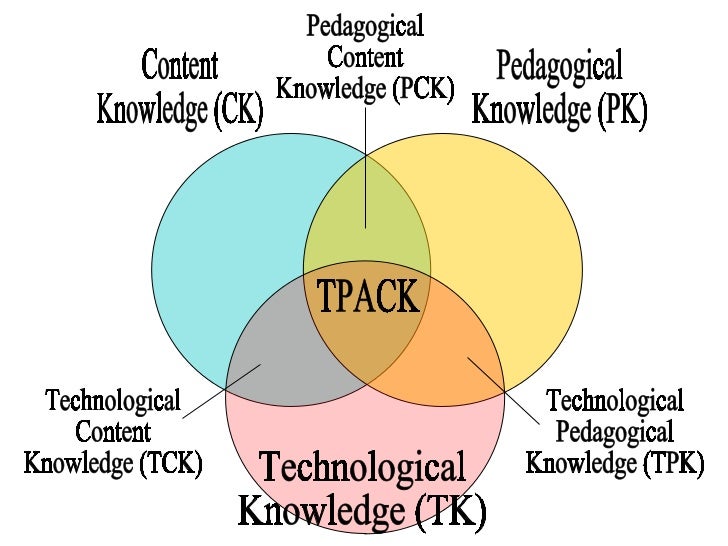
  • The TPACK approach, which a model that has been developed by Mishra and Kohlerin 2006, outlines how content and pedagogy must be the foundation for an effective integration of technology in the classroom. Through this activity, it can be seen that technology is perfectly integrated within a content and how the teachers intends to get to know students´prior knowledge and prepare them for what will come next. Content, predagogy and thechnology are clearly and successfully integrated. 

task 1 - 5': 
Students will be asked to work on a text with four very well known festivals: Carnival, St. Patrick’s Day , Holi and Glastonbury.
(the text is an addapted version from the following webpage: GREAT FESTIVALS OF THE WORLD


First, the teacher is going to ask them to work with the title and the pictures and make some predictions on what the text could be about. Then, the students are going to read the text for the first time to check if those predictions were ok. 

task 2 - 10`
The teacher will guive the studets a group activity to check comprehention.


Group work. The T will write the name of each festival on the board and place some sentences on the desk for one member of each group to come to the front and take one of those  phrases. Then that student will go back to their group and discuss with the rest of the members which festival that phrase refers to.Once they have finished, the same student will stick the sentence under the corresponding festival. The group which gets more correct answers will win the competition.

Carnival                   St. Patrick’s Day Holi               Glastonbury


Sentences:

  • People are usually dressed in green and they get together in open space.
  • It is one of the most well - known festivals around the world which takes place in Latin America. 
  • It is celebrated in different parts of the world and its duration may vary according to the place.
  • This festival involves not only music but also people sharing their interests and having a good time for long hours. 
  • This celebration represents the clash between two great forces.


Task 3 - 35`: 
Now, in small groups, students are going to use their computers and they are going to choose a festival that they like from a different part of the world or from their own country. The teacher will ask them to do thorough research on that festiva and once they have collected the appropriate information they are going to create a video using POWTOON to advertise it. Once they have finished, we are going to share the videos and we are going to vote for the most original one. 


THE USE OF POWTOON: 
To justify the use of technology in his activity, I will resort to the followin theoretical frameworks
  • Taking the Bloom´s digital taxonomy into account, students are going to use a higher order thinking skill which is to "create". They are going to use all the information they collected while doing reaserch to create a video. The activity is perfectly placed at the end of the lesson as the teacher went gradually from lower level thinking skills to the highest level.
  • The use of technology in this activity can also be supported from Ruben Puentedura´s SAMRA Model. The SAMRA model helps the teacher reflect upon how we are using technology in the classroom. This activity is a clear example of how technology is integrated at a redefinition level in which students are asked to create something new that would be inconceivable without technology. Students cannot create a video with images, texts and audio without the use of an app or a webpage that allows them to create it. 
  • PLANIED was developed by the Ministry of Education and Sports in 2015. It aims at promoting digital literacy in students´every day life. This is why teachers should reflect upon the necessary skills they should teach their students to be able to use different digital tools. Taking into account the dimentions that this approach proposes, it can be said that in this lesson students need to be creative, communicate and collaborate in order to do the video. They also have to be responsible and supportive with their classmates as they are working cooperatively. At this stage of the lesson, the teacher is only a mediator and the learners are more autonomous and they turn into the buiders of their own knowledge as they have to do research and select the information that they consider important in order to create the video. Also, critical thinking is involved in this activity as students are transforming and addapting the material they are using to create a video that advertises that festival.   


If you don´t know the two thechnological tools proposed in this lesson plan, you may want to go to the following post to learn how to use them. 

References: 

Ripani, F. (2016). Competencias de Educación Digital. Ministerio de Educación y Deportes. Retrieved in July 2017 from http://www.bnm.me.gov.ar/giga1/documentos/EL005452.pdf

Puentedura, R. (2006). Transformation, Technology, and Education. Retrieved in October 2019 from
http://www.hippasus.com/rrpweblog/archives/2014/06/29/LearningTechnologySAMRMdel.pdf.

Sneed, O. (2016). Integrating Technology with Bloom's Taxonomy. Retrieved in October 2019, from https://teachonline.asu.edu/2016/05/integrating-technology-blooms-taxonomy/.

Rodgers, D. (2008, June 19). The TPACK Framework Explained ( with Classroom Examples). Retrieved from https://www.schoology.com/blog/tpack-framework-explained.

domingo, 18 de agosto de 2019

Webquests

Hi everyone! Today I am going to introduce an interesting way of using technology in the classroom. I am going to explain how to use internet-based project works or, more precisely, WebQuests and then I am also going to share with you one Webquest I have created on extreme sports.


What is a Webquest?


They are projects in which a large percentage of the input and material is supplied from the Internet.  According to Professor Bernie Dodge, it is an inquiry-oriented activity in which some or all of the information that learners interact with comes from resources on the Internet. Webquests differ from another type of internet-based project works because they have a clearly stated structure.


There are two types of WebQuests:

Short-term WebQuests: At the end of these WebQuests learners will have grappled with a significant amount of new information and made sense of it. It may spread over a period of a couple of classes or so and will involve learners in visiting a selection of sites to find information in class to achieve a set of learning aims.

Longer-term WebQuests: At the end of these WebQuests learners will have analysed a body of knowledge deeply, transforming it in some way, creating sth that others can respond to, turning the information into a new product (a report, a presentation, interview, etc). It may last a few weeks or a term.


Structure of a Webquest:


Step 1 – Introduction: It is said to be the overall theme of a Webquest. It involves giving background information on the topic, key vocabulary and concepts which learners will need to understand in order to complete the tasks. 


Step 2 – Task:
It explains clearly and precisely what the learners will have to do as they work their way through the Webquest. It should be interesting and motivating, firmly related to a real-life situation (role-play within a giving scenario).


Step 3 – Process: It guides the learners through a set of activities and research tasks, using a set of predefined resources (Internet-based, as a set of active links to websites within the task document and a language-based Webquest introduces or recycles lexical areas or grammatical points which are essential to the task).


Step 4 – Evaluation: It can involve teacher evaluation and learners in self-evaluation, comparing and contrasting what they have produced with other learners, and giving feedback on what they feel they have learnt and achieved.


Webquest creation :

It doesn’t require much detailed technical knowledge. The skills required are research, analytical and word processing.
Exploring the possibilities stage:

- Choose and chunk the topic: decide on a macro topic and then break it into micro chunks of topic areas.

- Identify the learning gaps: Identity which areas your learners would benefit from and design tasks for the process stage to activate critical thinking skills.

- Inventory resources: Collect the resources for the Webquest (links, images and media files)

- Uncover the question: provide a central question or idea which has no single answer, and which needs research and interpretation.

Designing for success stage: 


- Brainstorm transformations: Decide what your learners will be doing with the information they find on the websites.

- Identify real-world feedback: Try looking for ways in which the information for the WebQuest might be gathered from real people.

- Sort links into roles: The links identified in the inventory resources should be assigned to the various sections of the process stage of the Webquest

- Define the learning task: These are the direct result of working through the Webquest ( a survey, a report, a presentation and self-evaluation)

Creating your Webquest stage: 

- Write the webpage: Use Word adding links and images to each section.

- Engage learners: Think about an engaging introduction as a lead-in

- Scaffold thinking: Think about the instruction in the Webquest.

-Decision: implement and evaluate: The feedback from a group or two.


Here is the link to a Webquest I have created :


Hope you find it useful :)

References:

Hockly, N., & Dudney, G., (2007) Chapter 4 "Internet Based Project Work", In How to Teach English with Technology. Essex: Pearson.

martes, 2 de julio de 2019

Using websites

Hi there! In this post, I will propose two lesson plans to work on the topic "extreme sports" using web 1.0 webpages. I have evaluated the webpages I will use in these two lessons and many more in my previous post. You may find them useful too. Here is the link to my previous post:

https://macarenaict-utn.blogspot.com/2019/07/web-10-website-evaluation.html


- Topic: Extreme sports
- Students´age: 14/15-year-old students.
- Level: intermediate.

Lesson plan N° 1 (90-minute lesson):
Imagen relacionada
Warmer: 

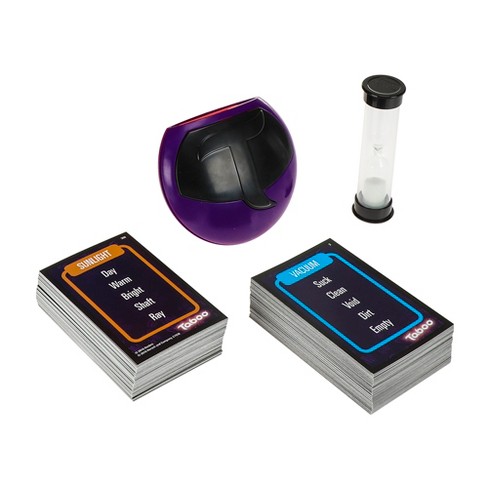
Taboo game: In this game students will be divided into two groups. Each member of the group will take turns to pick a card with an extreme sport and taboo words they cannot mention. They will have to give clues to their classmates in order to guess the sports.

After that, the teacher will ask the students some questions for class discussion about extreme sports to get them into the topic:

-Have you ever done an extreme sport or activity?
-Would do you like to try any in the future?
-What are the most common extreme sports in our country? Where can we practice them?

Web: 

We will go to the lab club and the teacher will ask the students to access the following webpage: 

Before watching the video and to check the meaning of some of the vocabulary that the teacher will ask the students to do a matching activity with some words and their definitions using the authoring tool: hot potatoes. 
  
You have to click on this link, download the file and then you will be able to open it with your browser!

https://drive.google.com/file/d/1LUyyPlp0zQuYmFMZS0pjJ5XJ3AnaKX7z/view?usp=sharing


After that, the teacher will ask them to watch the video and to do the online activities for listening comprehension.


Once they have finished and we have discussed the video, the teacher will ask the students to get into groups and choose 3 extreme sports from the following webpage. They will need to read and select useful information about each sport in order to create an interwiew (similar to the one in the video) to different well known or ivented athletes that perform those activities. 


What´s next: 

Students will create in pairs the interwiews to different well known or ivented athletes that perform those activities. 


Lesson plan N° 2 (90-minute lesson):

Warmer: 
as a warmer activity the teacher will ask the students to use hot potatoes to revise some of the extreme sports that were discussed in the previous class.

Remember to click on this link, download the file and then you will be able to open it with your browser !

https://drive.google.com/file/d/18MedLG9gnWQRq2_a4tfKiWDquuXHdxdC/view?usp=sharing


Web: 

The teacher will show the learners the following pictures and she will try to find out what they know about Xgames and if they have watched these competitions before:

Resultado de imagen para x games    Resultado de imagen para x games   Resultado de imagen para x games


In order to explain students a little bit more about this tournement. The teacher will ask them to read the article from the following page:

https://www.nationalgeographic.org/encyclopedia/x-games/


While reading this article the teacher will ask them to focus on the underlined words and to check their meanings in the vocabulary section of the webpage. She will also encourage students to use online dictionaries to check any other unknown word.

For the sake of reading comprehension, the teacher will give students some true or false sentences.

Once students know what the Xgames are about, the teacher will tell them that the next X game competition is this year in August. And that they will have to collect the necessary information from the following webpage in order to create an infographic advertising it and with useful information for the people that what to go and enjoy the different competitions.

http://www.xgames.com/minneapolis/article/26942786/x-games-minneapolis-2019-frequently-asked-questions-faq


What´s next: 

Students will create the infographic with the information they have considered relevant from the webpages using piktochart.


Bibliography: 

Extreme Sports. (n.d.). Retrieved from https://learnenglish.britishcouncil.org/snowdon/extreme-sports

Viator, & Viator. (2017, December 07). 25 Adventure Activities Around The World. Retrieved from https://www.huffpost.com/entry/top-25-adventure-activities_b_2403593

National Geographic Society. (2012, October 09). X Games. Retrieved from https://www.nationalgeographic.org/encyclopedia/x-games/

X Games Minneapolis 2019 -- Frequently Asked Questions (FAQ). (n.d.). Retrieved from http://www.xgames.com/minneapolis/article/26942786/x-games-minneapolis-2019-frequently-asked-questions-faq


makebeliefscomix tutorial

Hi, in my previous post I shared with you a lesson plan in which students use Makebeliefscomix . I f you don`t know how to use it you c...